October 12, 2026



Fifteen minutes, once a month, on a day you'll actually remember. That's the whole commitment. Most home security problems aren't clever intrusions — they're an unpatched browser, a microphone permission granted to an app you tried once, or a retired laptop still signed into your account. A short recurring pass catches all three before someone else notices them. Run it in this order: patches first, permissions second, connected devices third, and backups last so you finish on something reassuring.
On Windows, open Settings > Windows Update, click Check for updates, then look under Advanced options > Optional updates and install driver or firmware items you recognize. Reboot when it asks — a pending restart means the fix isn't active yet. For everything installed outside the Microsoft Store, open PowerShell and run winget upgrade --all. It lists outdated programs and updates them in one pass, and you can review the list before confirming.
On macOS, open System Settings > General > Software Update, install what's offered, then check Advanced to confirm security responses and system files are set to install automatically. App Store apps update on their own, but anything you downloaded directly — a video editor, a PDF tool, a VPN client — needs its own "Check for updates" click.
Browsers, PDF readers, messaging apps and your router's firmware are the usual ways in. Browser updates arrive silently, so just confirm the version is current in the About menu. Router firmware you have to fetch yourself: log into the admin page, check for a firmware update, and repeat every few months. It takes four minutes and closes a door nobody else patches for you.
Permissions drift. You install something for a single task, grant camera or microphone access, and forget it's still there two years later.
On Windows, go to Settings > Privacy & security and walk through Camera, Microphone, Location and Background apps. Revoke anything you don't recognize or no longer use. On a Mac, the equivalent list lives in System Settings > Privacy & Security.
Two categories deserve extra attention on macOS: Screen Recording and Full Disk Access. Apps in those lists can see nearly everything you do. Legitimate tools live there — backup software, a password manager, some utilities — but if an entry is unfamiliar, look it up before leaving it in place. Accessibility is the third one to scan; it lets an app control your Mac on your behalf.
A simple test for every entry: can you say out loud what this app does with the access? If not, switch it off. You can always turn it back on.
You're looking for two things: hardware you no longer own, and sessions you don't remember opening.
Extensions are the softest spot on most home machines because they run inside every page you visit. Open the extension page — chrome://extensions, edge://extensions, about:addons in Firefox, or Safari > Settings > Extensions — and remove anything you haven't used in a month. Pay particular attention to extensions that can "read and change all your data on all websites." That's a big ask for a coupon finder.
While you're there, glance at saved passwords. You don't need to change everything today; note the reused ones and fix them as you log in. If your browser or password manager offers a reuse or breach report, run it and work through the top few entries.
Open your backup tool — Time Machine on a Mac, File History or a third-party image tool on Windows — and check the date of the last successful run. Then restore one small file to a scratch folder. A backup you've never tested is a guess, not a backup.
Aim for two copies on different devices and one kept away from home, whether that's an external drive stored elsewhere or an encrypted cloud service. This is the step that turns a very bad day into an inconvenience.
Put a repeating 15-minute block on your calendar for the first weekend of the month and keep it boring:
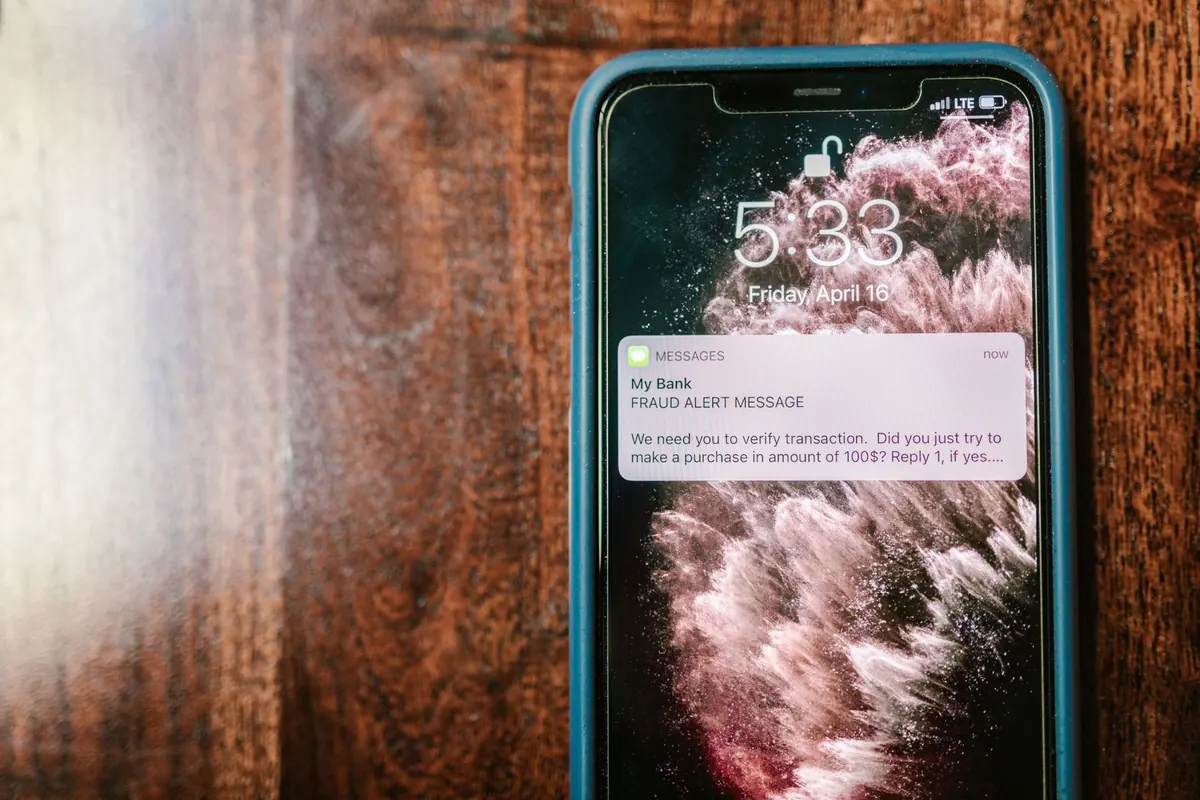
If something looks wrong — a program you didn't install, a login alert for a session you didn't start, a device you can't identify — handle it that day rather than next month: disconnect it, change the password on the affected account, and confirm two-factor authentication is switched on. For anything touching bank or brokerage accounts, call the institution using the number printed on your card or statement rather than a link in an email. Fifteen quiet minutes a month is a small price for knowing exactly what's on your machines and who can reach them.
Photo: Vlada Karpovich / Pexels
Your guide to spyware removal and online security.
Copyright © 2026 Spyware Spot. All rights reserved. Spyware Spot.