Title: How to Check If Your Local Library's Wi-Fi Is Safe: A City-by-City Guide
Library Wi-Fi is one of the few genuinely useful free services left in a city, and it is also one of the easiest places to get quietly watched. The network is shared, frequently unencrypted, and full of people who assume that a login screen means somebody checked the connection. Telling the difference between a network that is merely open and one that is actively hostile takes about five minutes and a few habits you can keep for years. What follows is the check itself, the mistakes that actually cost people money, and a rough map of how library networks differ from city to city — because naming conventions, login rules, and real risk levels change the moment you cross a county line.
What can actually go wrong on an open network
Public Wi-Fi risks get exaggerated in one direction and waved away in the other. Nobody is cracking your bank's encryption from a reading-room armchair. The realistic problems are specific, small, and expensive:
- An evil twin. Someone nearby broadcasts a network name that looks like the library's. You connect to the copy, and your traffic passes through their laptop first. It takes a cheap hotspot and a convincing SSID.
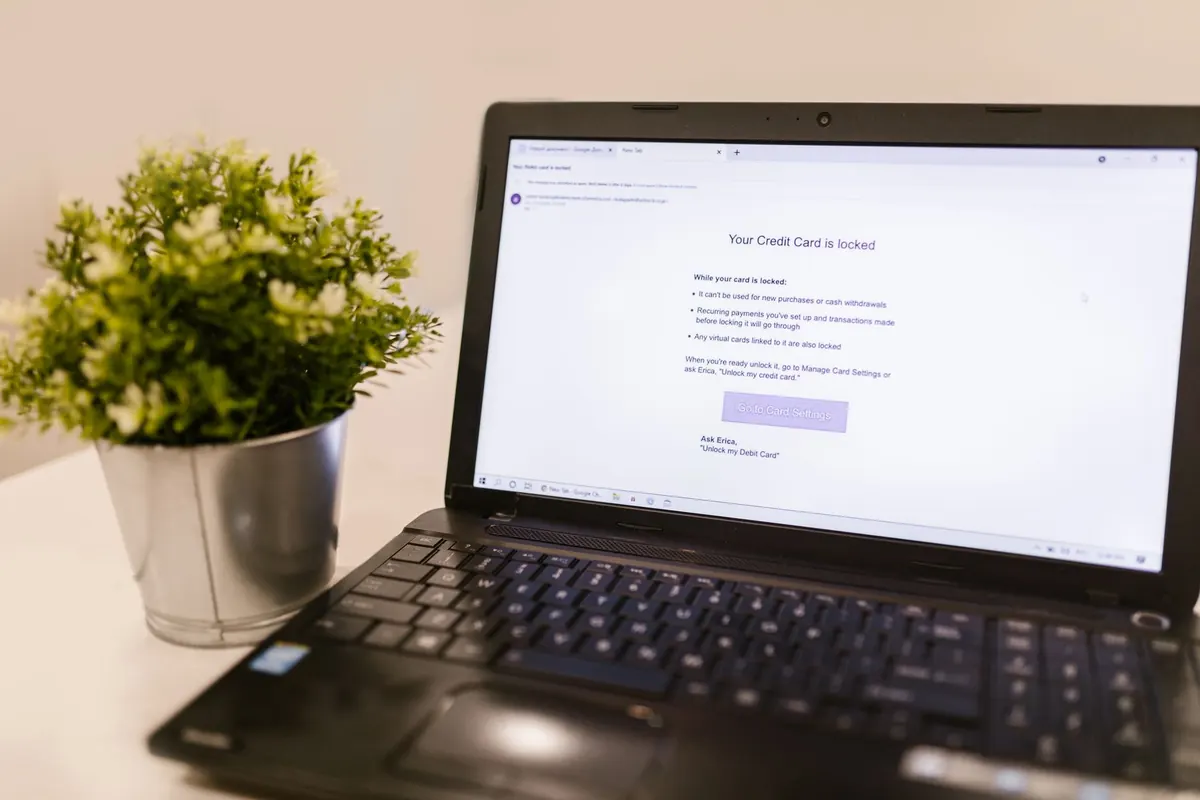
- A dishonest captive portal. The page that appears before you get online asks for a card number, a PIN, or a password you already use elsewhere. Real library portals ask for a library card, a guest code, or nothing at all.
- Unencrypted traffic. On a network with no password, anyone in radio range with the right tools can see which sites you reach. HTTPS hides the contents; destinations are often still visible.
- Prompted downloads. A pop-up offering a "required driver update" or a "faster browsing app" is a classic malware trick, and shared networks attract them.
- Your own device sharing things. File sharing, screen sharing, and AirDrop set to everyone can expose files to other people on the same network — and plenty of laptops still carry those settings over from the last home network they joined.
- Session snooping on the local segment. Some shared networks isolate devices from one another; many do not. Where they don't, a stranger can sometimes see your device name, your shared folders, and the names of the other devices you're carrying.
A login page is not a security check. It is a form. Anyone can publish one.
The three-minute check before you connect
Do this once per building. It becomes automatic after a while.
- Ask at the desk. Get the exact network name, spelling included, and ask whether a password is required. Staff know; a stranger broadcasting a lookalike does not.
- Read the list on your screen. If you see "CentralLibrary-WiFi" and "CentralLibrary_WiFi_Free," assume one is a decoy and wait for the real name from a human.
- Prefer the network with a password. Even a shared WPA2 password — the kind printed on a slip at the reference desk — is better than no encryption at all, because it forces each session to be encrypted at the radio level. It doesn't make you anonymous; it makes casual sniffing dramatically harder.
- Check what the portal asks for. A library card number and PIN is normal. A credit card, a national ID number, an Apple ID, or "your email password to continue" is not. Close the tab and go find a staff member.
- Turn off sharing before you join. AirDrop to contacts only or off, file sharing off, Bluetooth off if you don't need it, and auto-join disabled so your phone stops attaching itself to anything with "library" in the name.
- Forget the network when you leave. Auto-join is the mechanism evil twins rely on. Set the library network to "ask to join" rather than automatic, and prune the list of saved networks now and then.
One rule that covers most of it
If a page, a pop-up, or a "helpful" neighbour asks you to install something, agree to something, or re-enter a password in order to get online, treat it as hostile until a staff member confirms otherwise. Libraries almost never require an install to grant access.
City by city: the four patterns you will meet
Library systems are not built to a common standard, and the differences matter because they change what a fake network looks like. In practice you will run into four arrangements.
1. One name for the whole system
Large city systems often broadcast a single SSID at every branch, so a network that is genuine in one neighbourhood is genuine everywhere. That's convenient and slightly risky: the name is easy to learn and therefore easy to imitate. The tell here is the portal. If the same system-wide login page you saw last week is replaced by something unfamiliar, stop and ask.
2. A separate name per branch
Other systems name each network after the building — a street name, a neighbourhood, a branch number. Here the strongest check is the desk: staff know which name belongs to their own building, and a decoy usually gets the suffix wrong ("-Guest", "-Free", "-5G") or uses a hyphen where the genuine name has an underscore.
3. Card-gated or code-gated access
Many systems require a library card number, a PIN, or a one-time guest code printed on a receipt. This is genuinely good news. It means there is a controlled entry point, an audit trail, and a real page that a fake portal has to imitate convincingly — and most fakes don't bother. If the library has ever issued you a code, use it.
4. The library rides on someone else's network
Some branches hand you the city's municipal network, a university's eduroam-style system, or a commercial hotspot run under contract. These are often the better-secured option, but they come with their own login rules and their own lookalikes. Read the signage rather than the list on your screen; signage is printed by the institution, and a hotspot name is not.
Whatever the pattern, names and vendors change with contracts and refurbishments, so nothing learned on one visit stays true forever. The verification step is identical in every city: the network the staff tell you about is the network you join.
Habits that protect you on any library network
- Use HTTPS everywhere. Turn on your browser's "always use HTTPS" mode, and treat a certificate warning as a stop sign rather than a speed bump.
- Save the sensitive work for elsewhere. Banking, tax filing, and anything involving a card number belong on your phone's data connection or at home.
- Use a VPN if you have one. It isn't magic, but on an open network it moves your traffic out of reach of the person at the next table.
- Let a password manager do the typing. It will refuse to fill a password into a lookalike portal — a security feature you cannot replicate by eye.
- Turn on two-factor authentication. It is the single best defence against a password captured on a shared network.
- Keep the device patched. Most of what actually gets exploited on public Wi-Fi is an unpatched browser, not a clever attacker.
- Log out, don't just close the tab. Shared machines and shared networks both reward the person who tidies up after themselves.
If you think you connected to the wrong network
- Disconnect immediately, then choose Forget This Network so you don't drift back to it next time.
- Change the passwords for anything you logged into while connected, starting with email.
- Check for new browser extensions, new profiles, or configuration profiles you did not install.
- Run a malware scan, and update both the browser and the operating system.
- Tell the library. Staff track this, and a fake hotspot reported once often disappears for everyone.
- Watch your accounts for a few weeks. Most fraud that follows a bad network surfaces fast, if it surfaces at all.
The short version: ask a human for the name, prefer the password, ignore anything that wants an install, and save your banking for later. Do that and the library stays what it is supposed to be — the cheapest quiet desk in the city.
Photo: Startup Stock Photos / Pexels